
 Author
Osman Basaad
Business & Entrepreneurship Writer
Osman Basaad writes about business,
entrepreneurship, startups, innovation
and technology, focusing on clear,
practical and useful information for
modern entrepreneurs and business readers.
Author
Osman Basaad
Business & Entrepreneurship Writer
Osman Basaad writes about business,
entrepreneurship, startups, innovation
and technology, focusing on clear,
practical and useful information for
modern entrepreneurs and business readers.
 Content Reviewer
Inzemam Ul Haq
SEO, Digital Marketing &
Business Development Professional
Inzemam Ul Haq is a Content Reviewer
with 5+ years of experience in SEO,
digital marketing and business development.
He reviews content for clarity, relevance
and usefulness for readers.
Content Reviewer
Inzemam Ul Haq
SEO, Digital Marketing &
Business Development Professional
Inzemam Ul Haq is a Content Reviewer
with 5+ years of experience in SEO,
digital marketing and business development.
He reviews content for clarity, relevance
and usefulness for readers.
Last Updated: October 15, 2026
As soon as you enter the URL address like www.example.com, your computer will not be able to find out immediately where to go. First of all, the process of DNS lookup is performed – the computer must use this process to receive the IP address of the domain name.
Nevertheless, when DNS lookups take a long time, sites become unresponsive and load slowly, applications work badly, and a user faces a lot of delays. Whether you are a site owner, a network administrator, a developer, or an internet surfer, knowledge about the problems of slow DNS lookups and their solutions will significantly increase the surfing speed and performance of your network.
This guide will tell you about the common reasons for slow DNS lookups, possible solutions, ways of detection, and how to solve the problem effectively.
Table of Contents
What Is a DNS Lookup?
DNS lookup is a process of resolving a domain name into its numerical IP address.
For example:
theentrepreneurweb.com
↓
203.0.113.10 (example IP)
Without DNS lookup, people would need to remember IP addresses rather than domain names.
How to fix Slow DNS Lookup
A DNS request typically follows these steps:
- User enters a website address.
- Browser checks its local DNS cache.
- Operating system checks its DNS cache.
- Request goes to the configured DNS resolver.
- Resolver contacts authoritative DNS servers if needed.
- IP address is returned.
- Browser connects to the website.
If any step is delayed, DNS resolution becomes slower.
Symptoms of Slow DNS Lookup
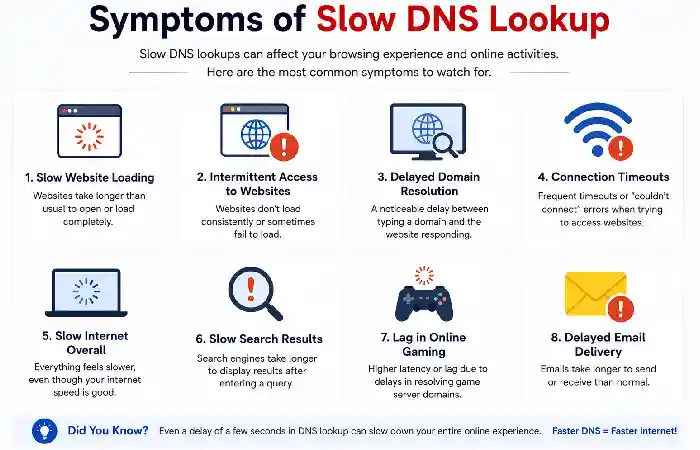
Common signs include:
- Websites take several seconds before loading.
- Browser displays “Resolving Host” for an extended period.
- Fast internet speed but slow website opening.
- Delays only when visiting a site for the first time.
- Mobile apps take longer to connect.
- Network drives respond slowly.
- Email clients experience connection delays.
Common Causes of Slow DNS Lookup
- Slow DNS Resolver
Using an overloaded or poorly performing DNS server can increase lookup times.
Examples include:
- ISP DNS congestion
- Misconfigured local DNS server
- High latency to DNS provider
- High Network Latency
Poor internet connections increase DNS response time.
Possible causes:
- Weak Wi-Fi
- Packet loss
- Congested network
- VPN overhead
- Large DNS Cache Misses
If a record isn’t cached, recursive DNS queries take longer.
Frequent cache misses may increase latency.
- Incorrect DNS Configuration
Configuration problems include:
- Invalid DNS servers
- Duplicate records
- Broken forwarding
- Incorrect recursion settings
- Firewall Delays
Security appliances may inspect every DNS request.
Examples:
- Corporate firewall
- Security gateway
- Content filtering
- DNS filtering software
- IPv6 Misconfiguration
Approximately systems attempt IPv6 DNS resolution before falling back to IPv4.
If IPv6 isn’t arranged properly, delays may occur.
- Browser Issues
Occasionally the browser—not DNS—is accountable.
Possible causes:
- Too many extensions
- Corrupted cache
- Proxy settings
- Old browser version.
How to Diagnose Slow DNS Lookup
Use nslookup
Windows:
nslookup example.com
Linux/macOS:
nslookup sample.com
Check how quickly the DNS resolver responds.
Use dig
Linux/macOS:
dig example.com
Look for:
Query time: 22 msec
Lower values indicate faster resolution.
Use ping
ping example.com
If DNS resolution is slow before the first reply appears, DNS may be the issue.
Use traceroute
Windows
tracert example.com
Linux
traceroute example.com
It identifies network delays beyond DNS.
15 Ways to Fix Slow DNS Lookup
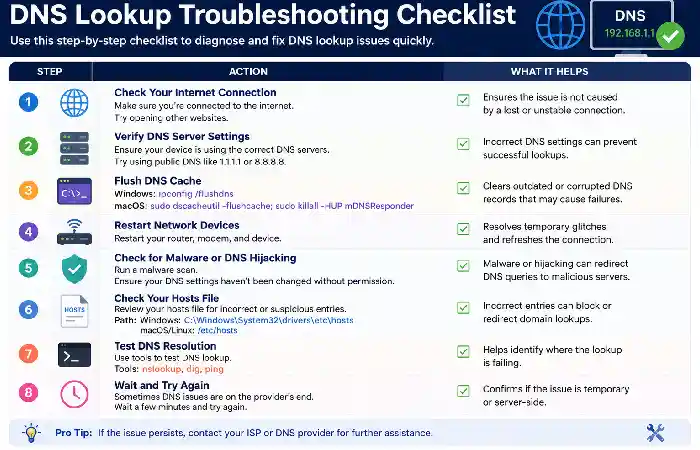
1. Resume Your Router
A simple restart can clear temporary network issues and refresh DNS settings.
2. Flush the DNS Cache
Windows:
ipconfig /flushdns
macOS:
sudo dscacheutil -flushcache
Linux (systemd):
sudo systemd-resolve –flush-caches
It eliminates out-of-date DNS records.
3. Change Your DNS Provider
Popular public DNS services include:
| DNS Provider | Primary DNS | Secondary DNS |
| Google Public DNS | 8.8.8.8 | 8.8.4.4 |
| Cloudflare DNS | 1.1.1.1 | 1.0.0.1 |
| Quad9 | 9.9.9.9 | 149.112.112.112 |
| OpenDNS | 208.67.222.222 | 208.67.220.220 |
4. Clear Browser Cache
Cached networking information may cause delays.
Clear:
- Browser cache
- Cookies
- DNS cache (Chrome internal DNS cache if applicable)
5. Disable Unnecessary Extensions
Browser extensions may intercept requests and slow page loading.
Disable extensions temporarily to compare performance.
6. Check Your Hosts File
Incorrect entries in the hosts file can delay DNS resolution.
Windows:
C:\Windows\System32\drivers\etc\hosts
Linux:
/etc/hosts
Remove outdated mappings if appropriate.
7. Test Without VPN
VPN services add extra routing.
Disconnect temporarily to compare DNS performance.
8. Restart the DNS Client Service
Windows:
services.msc
Restart:
DNS Client
9. Update Network Drivers
Outdated network drivers occasionally contribute to networking problems.
Check for:
- Ethernet drivers
- Wi-Fi drivers
- Motherboard chipset updates
10. Scan for Malware
Some malware changes DNS settings.
Malware and other threats can also be connected to broader software security issues, so following software supply chain attack news today can help users stay informed about emerging threats involving software and dependencies.
Use right-hand antivirus software to scan your device.
11. Optimize Local Network
Improve Wi-Fi by:
- Moving closer to the router
- Using the 5 GHz or 6 GHz band where available
- Switching to Ethernet for critical systems
- Reducing interference
12. Verify DNSSEC and Configuration
If you manage a website, check:
- DNSSEC configuration
- SOA records
- NS records
- Zone delegation
Configuration errors can slow lookups or cause resolution failures.
13. Reduce DNS Record Complexity
Avoid unnecessary:
- Long CNAME chains
- Multiple redirects
- Excessive lookups
Simpler DNS configurations generally resolve faster.
14. Monitor DNS Performance
Use monitoring tools such as:
- DNSPerf
- Namebench (legacy)
- GRC DNS Benchmark
- Built-in operating system tools
Regular monitoring helps identify recurring issues.
Developers who manage Node.js applications should also monitor Node.js security news to stay informed about security vulnerabilities and updates that could affect their applications and supporting infrastructure.
15. Contact Your ISP
If all devices experience slow DNS resolution despite local troubleshooting, your Internet Service Provider may be experiencing resolver issues.
DNS Lookup Troubleshooting Checklist
| Problem | Possible Solution |
| Slow first website visit | Flush DNS cache |
| Slow on all devices | Restart router |
| ISP DNS slow | Switch to a public DNS provider. |
| Browser hangs on “Resolving Host” | Clear browser cache |
| VPN enabled | Test without VPN |
| Malware suspected | Run a security scan |
| Wi-Fi weak | Improve signal or use Ethernet. |
| DNS server unavailable | Configure an alternative resolver. |
Best Practices to Prevent Slow DNS Lookups
Organizations handling sensitive information should also consider secure technology solutions such as Kogniz contact tracing when evaluating systems that depend on reliable and secure network infrastructure.
- Keep your operating system updated.
- Use a reliable DNS provider.
- Maintain secure network equipment.
- Monitor DNS performance periodically.
- Avoid unnecessary browser extensions.
- Secure your router with current firmware.
- Review DNS records regularly if you manage a domain.
- Use wired connections for latency-sensitive tasks.
Frequently Asked Questions
How much time is supposed to be consumed by normal DNS resolution?
Normal DNS resolution would typically take between 10 and 50 ms in case of a fast and close proximity of a DNS resolver. Cached resolution would be quicker than that.
Would poor DNS performance affect web page load time?
Sure, poor DNS resolution means that it will take more time to resolve the domain name prior to downloading the page.
Would changing DNS impact my internet speed?
No, changing DNS would not speed up the process of downloading and uploading, but could make the process of resolving faster.
Which is faster: DNS: Cloudflare or Google?
It depends on the geographical location and route via which the requests are sent.
Do I have to flush DNS cache regularly?
No, there is no need for it unless the issue with the cache has to be debugged.
Final Thoughts
Slow DNS resolutions can make a very good internet connection seem slow. Thankfully, nearly all DNS-related problems can be solved once you know what is causing them – this could include an inefficient DNS resolver, slow network connections, cached information, browser issues, or even faulty configurations.
With the help of diagnostic programs such as nslookup, dig, and traceroute, changing your DNS supplier to a trusted one, keeping your network configuration healthy, and applying the best practices in DNS management, it is possible to greatly speed up DNS resolution time, thereby improving browsing performance and site loading. No matter if you are working on your PC or optimizing your company’s website, having a fast DNS system is crucial.